
Google’s Playwrite font works great everywhere - except InDesign refuses to render the joined-up cursive version. The fix is buried in a paragraph panel option, but not the paragraph panel you think. You need to open it from the Window > Type & Tables > Paragraph menu to get the one with the actual settings. Classic Adobe.
QUICK FIX:
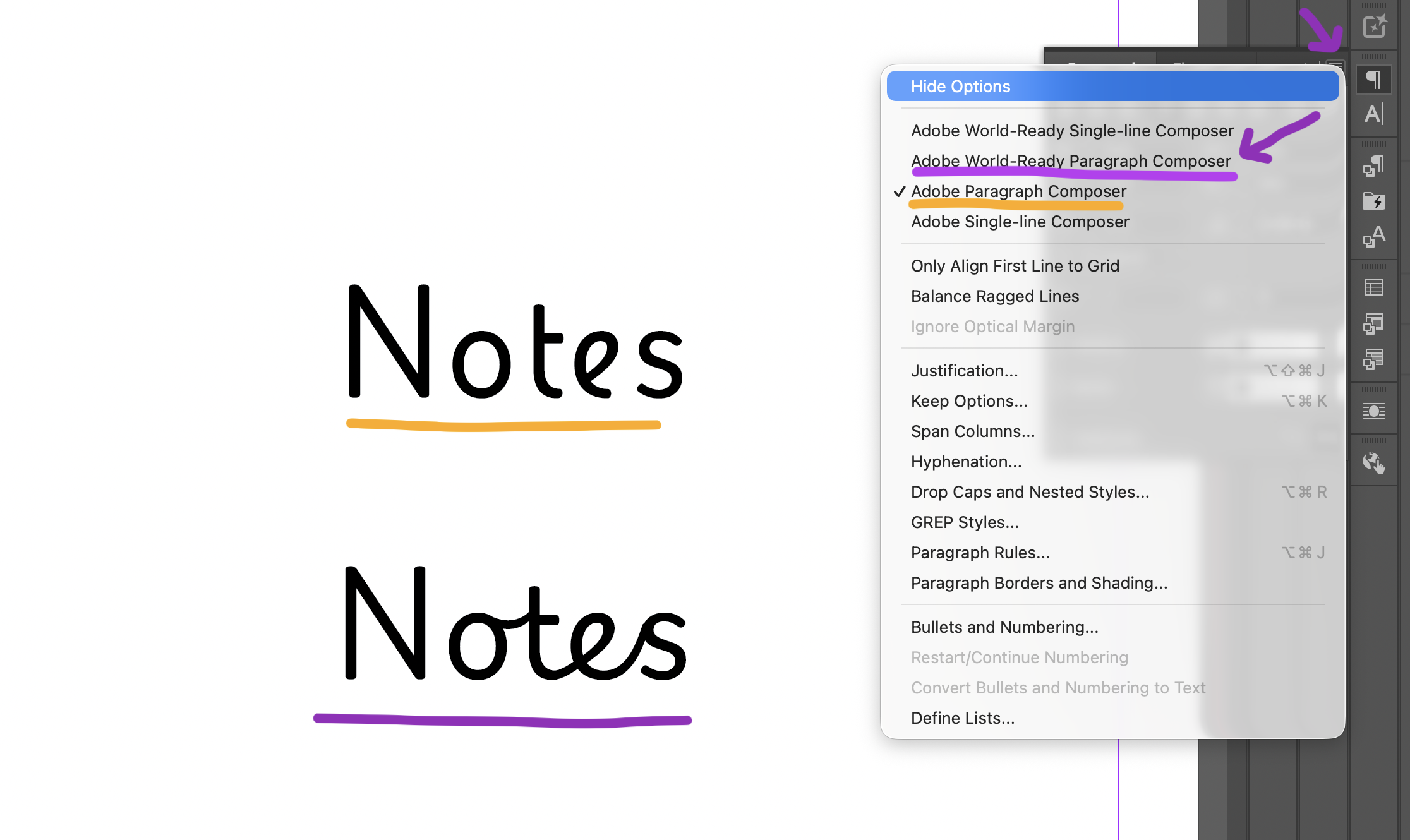
Open Window > Type & Tables > Paragraph (not the Properties panel). Click the flyout menu (top right of the panel). Switch from Adobe Paragraph Composer to Adobe World-Ready Paragraph Composer.
Playwrite Letters Not Connecting
When I started making handwriting resources, Google’s Playwrite font was a brilliant find. It’s free, it’s on Google Fonts, and it comes with country-specific variants - proper joined-up handwriting styles for different regions. Works on the web, works in Photoshop, works in… well, not InDesign. At least not out of the box.
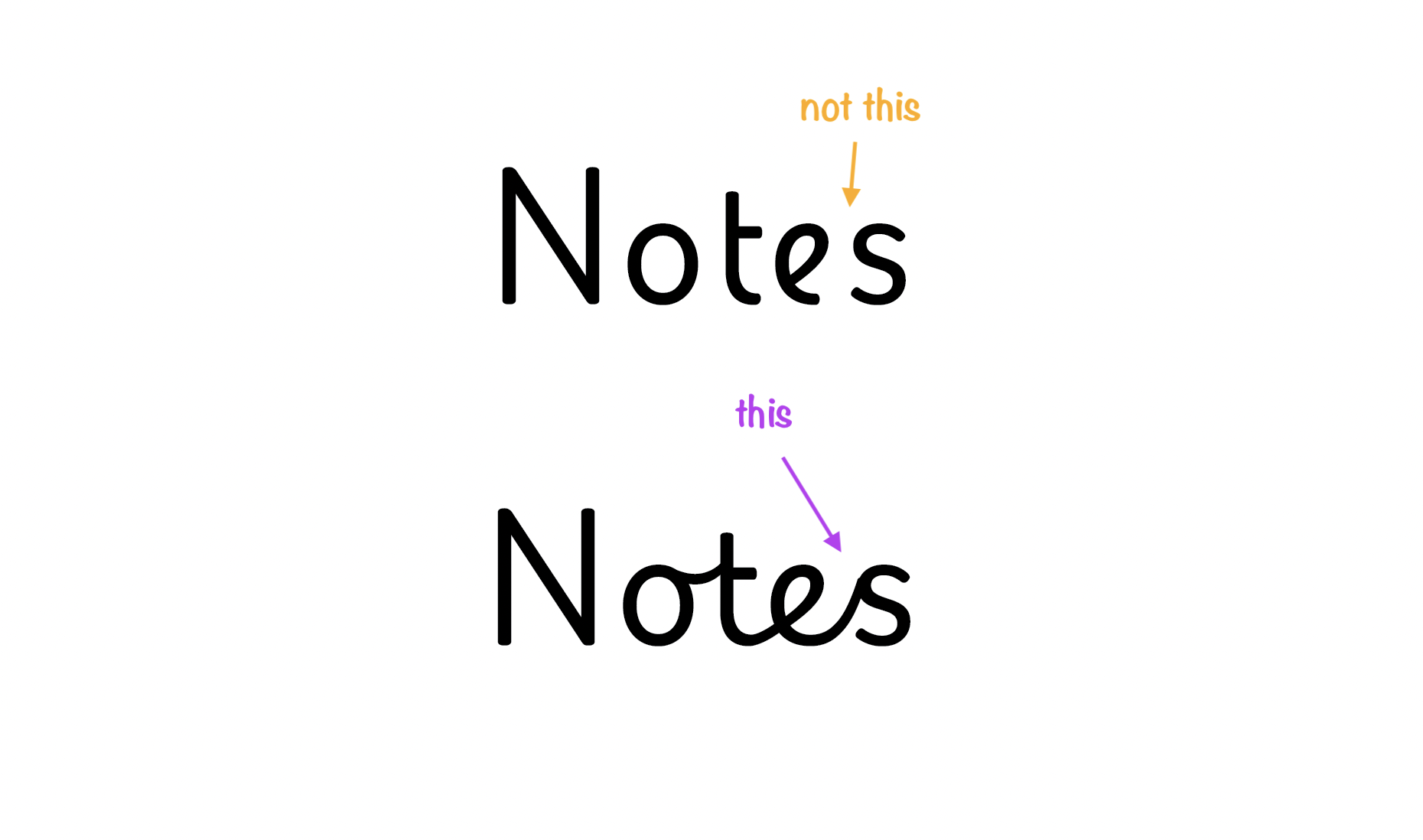
I needed the cursive, joined-up version for the worksheets I was making. InDesign rendered the letters, but would not join them up.
The OpenType Dead End
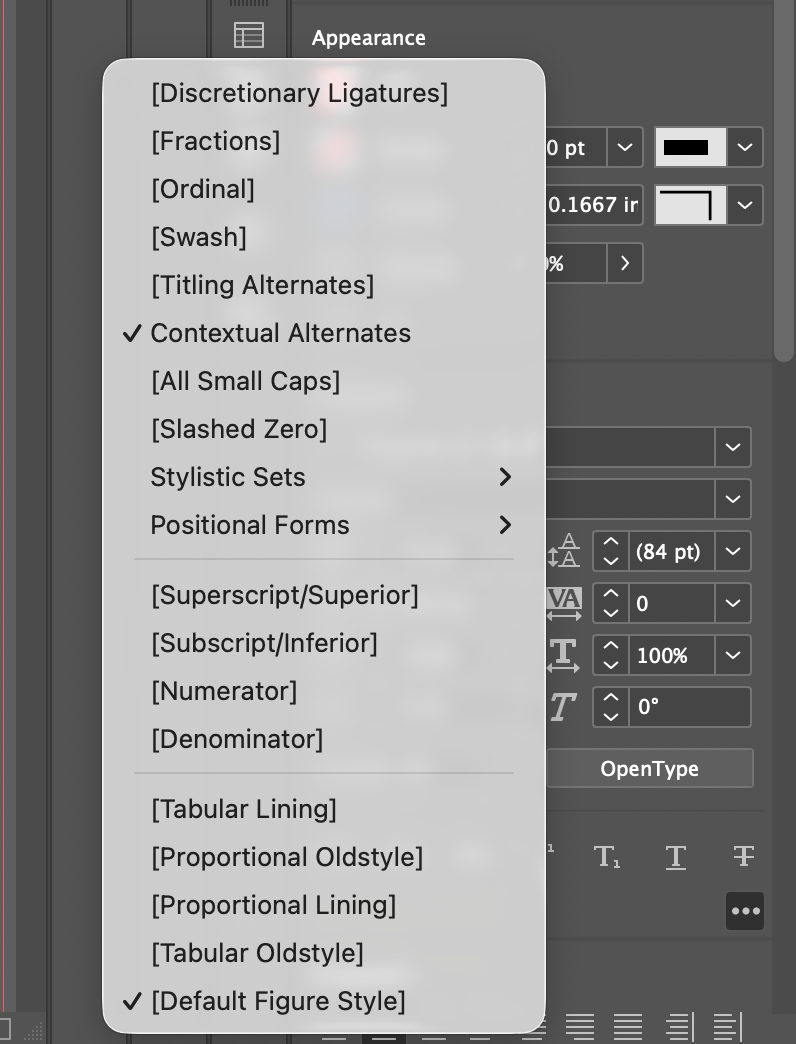
I did some online research which suggested changing OpenType settings in the Character panel. Ligatures on, ligatures off. I went through all of the options and still, nothing helped. Infuriatingly Photoshop worked well out of the box so it wasn’t a web vs desktop issue. I even tried using the CC version of the font as well as the one directly installed in the system. Nothing helped.
In the end I doubled down on generating the PDFs in the app, and that was that for a while.
The Fix: The World-Ready Composer (and the Two Paragraph Panels)
Months later, while looking for something unrelated, I stumbled upon TypeTogether’s official Playwrite setup instructions. Turns out there’s a specific setting you need to tick in InDesign’s Paragraph panel. I needed to switch from the default Adobe Paragraph Composer to Adobe World-Ready Paragraph Composer 🙄 Yeah, I too am still confused why that isn’t the default.
Lo and behold! My problem was fixed. But I ended up doing some other work for a few months and then last week got back to the handwriting resources. I needed the fix in a new document. Proud of myself for remembering what the issue was, I went into the Paragraph panel… only to find the menu wasn’t there. Whaaaaat?!
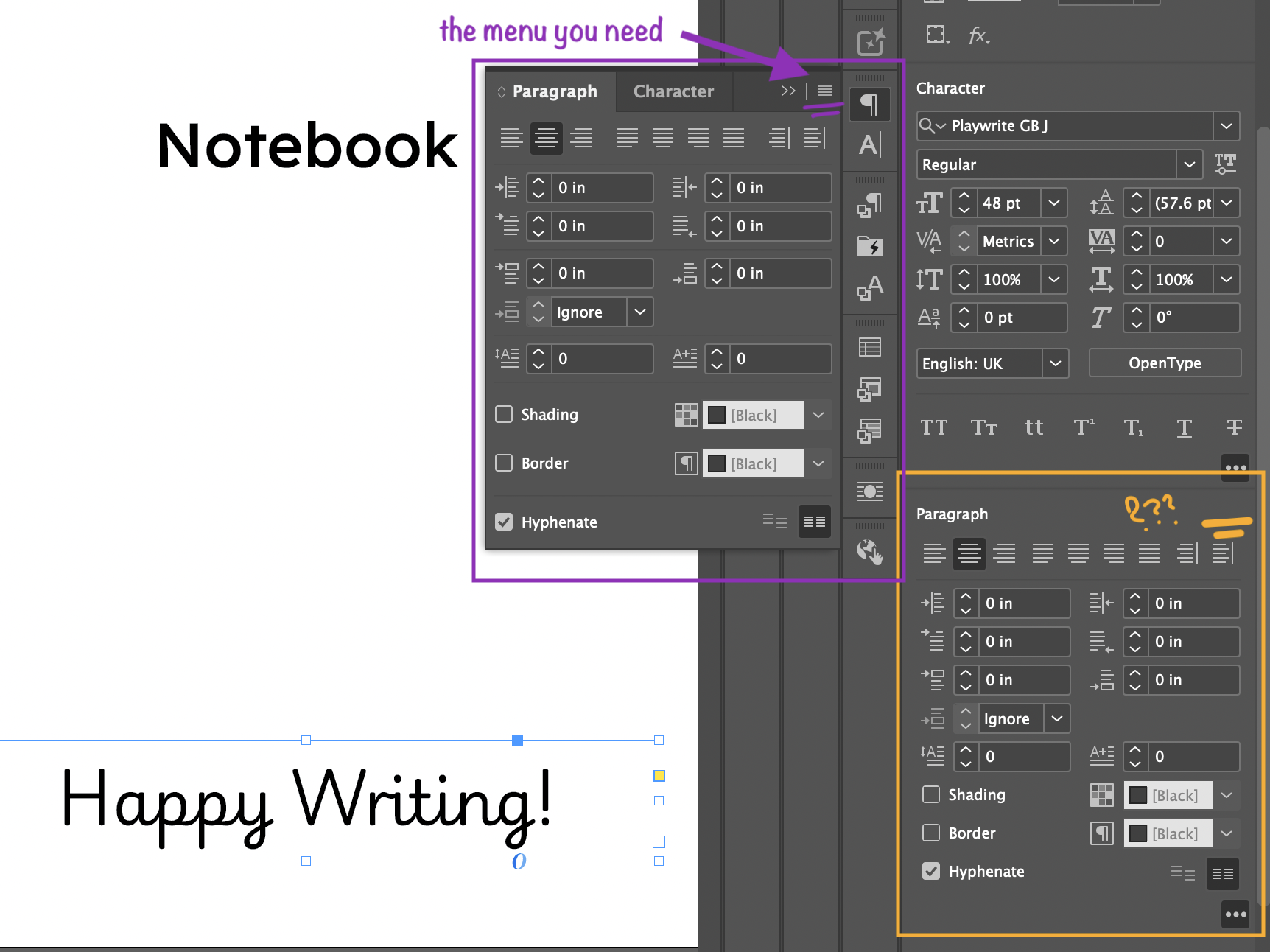
It took me a while to figure it out eventually. You have to use the Paragraph Panel (Window > Type & Tables > Paragraph menu) to get to the menu, NOT the Paragraph section in the Properties panel… I mean every single other field in those two panels is exactly the same, but for some reason, the menu exists in just one. Go figure. Classic Adobe.
Thanks for reading so far, while this might be a bit more technical than my other posts here I hope it might save you some frustration if you use Adobe products for your teaching and homeschooling materials. And if you’d like to know when my new handwriting resources are ready, you sign up to my newsletter today.